What the file contains
| Employee first name | Employee last name | Employee email | Regular hours | Overtime hours |
|---|---|---|---|---|
| Tom | Becker | tom.becker@example.com | 40.00 | 0.00 |
| Priya | Nair | priya.nair@example.com | 40.00 | 0.00 |
| Luis | Ortega | luis.ortega@example.com | 38.00 | 0.00 |
Four steps
Step 1: Approve the pay period
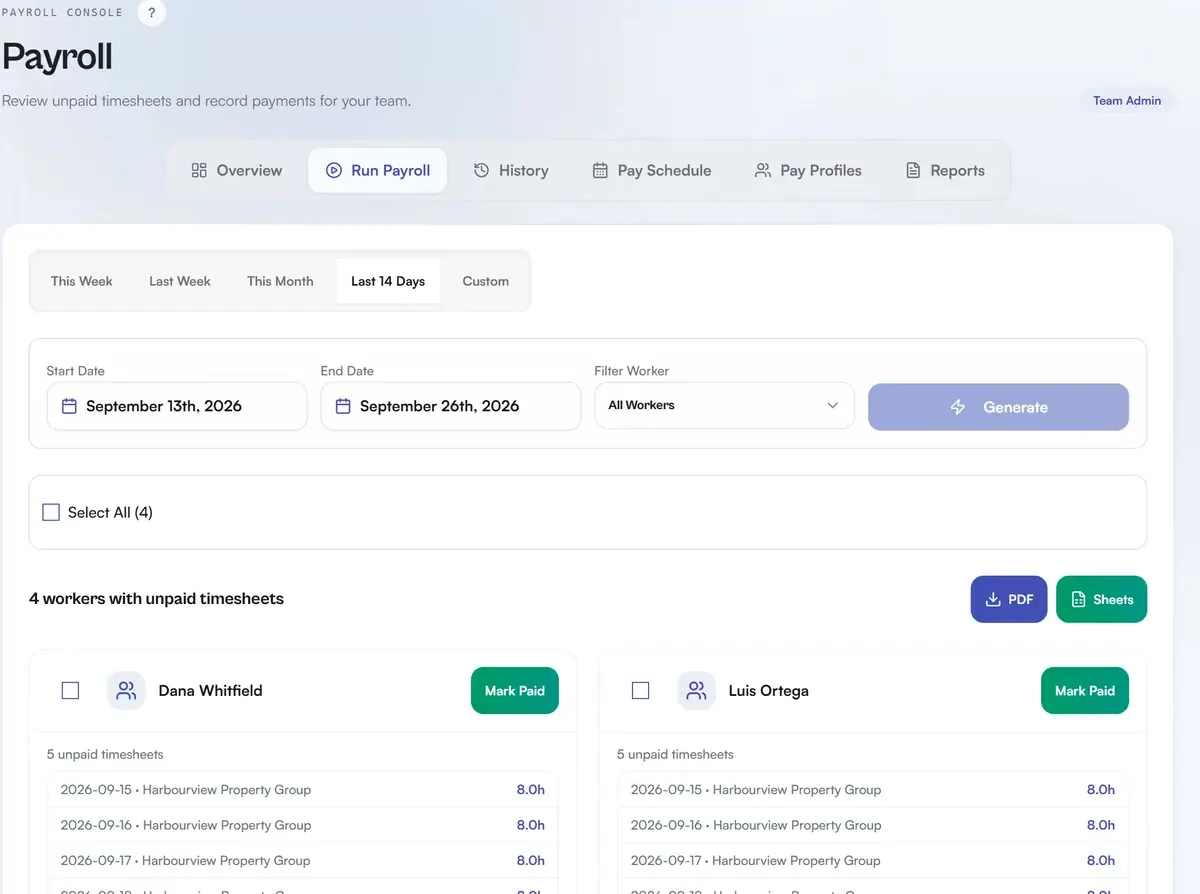
Review and approve the crew’s timesheets. The export aggregates only approved hours, one row per employee for the period.
Step 2: Run the pre-export check
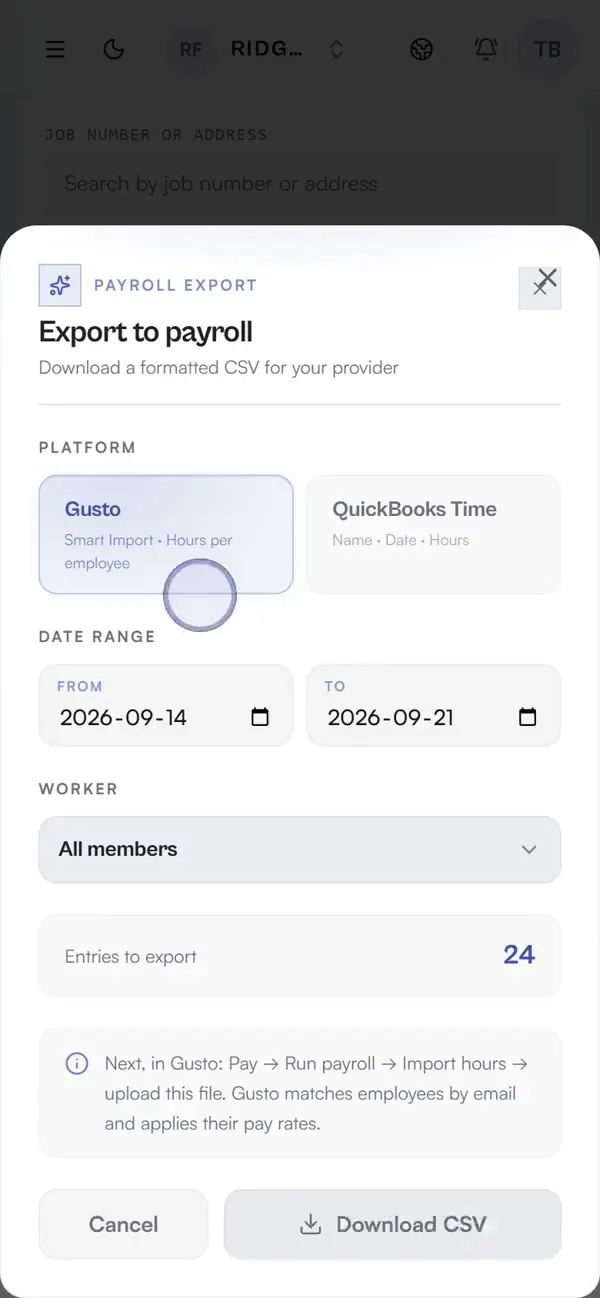
Choose Gusto in the payroll export. Daybill flags any member without an email because Gusto matches employees by email.
Step 3: Download the Smart Import CSV
The file already follows Gusto’s Smart Import format. Hours are totalled per employee; pay rates remain in Gusto.
Step 4: Import inside Gusto
In Gusto, open Pay → Run payroll → Import hours and upload the file. Gusto matches each row by email.
Review payroll before the handoff.
The payroll workspace gathers the approved period and pre-export checks. Daybill then prepares the Smart Import CSV for upload in Gusto.
Common questions
What does the Gusto file look like?
One aggregated row per employee for the pay period in Gusto Smart Import format. Gusto matches each row by email.
Is this a Gusto integration?
It is a CSV export in Gusto Smart Import format, without account linking or API access. Download from Daybill and upload during Run payroll.
What if a crew member has no email in Daybill?
Daybill tells you which members are missing an email before export. Add the email and export again so Gusto can match the row.
Which plans can export?
Every plan. Gusto and QuickBooks payroll-ready CSV export is included on the free Solo plan.
Try the export on your own hours.
No credit card. The free plan stays free and includes CSV export.
Part of the full field crew management stack.